Ainvest provides options tools across both its web platform and mobile app. This article maps out where everything lives so you can navigate confidently on either platform.
Web Platform
The web platform organizes options tools across several distinct page types. Each serves a different purpose.
Main Options Landing Page
URL: https://www.ainvest.com/options/
This is the primary options dashboard. It aggregates the most important market-wide options tools into a single scrollable page:
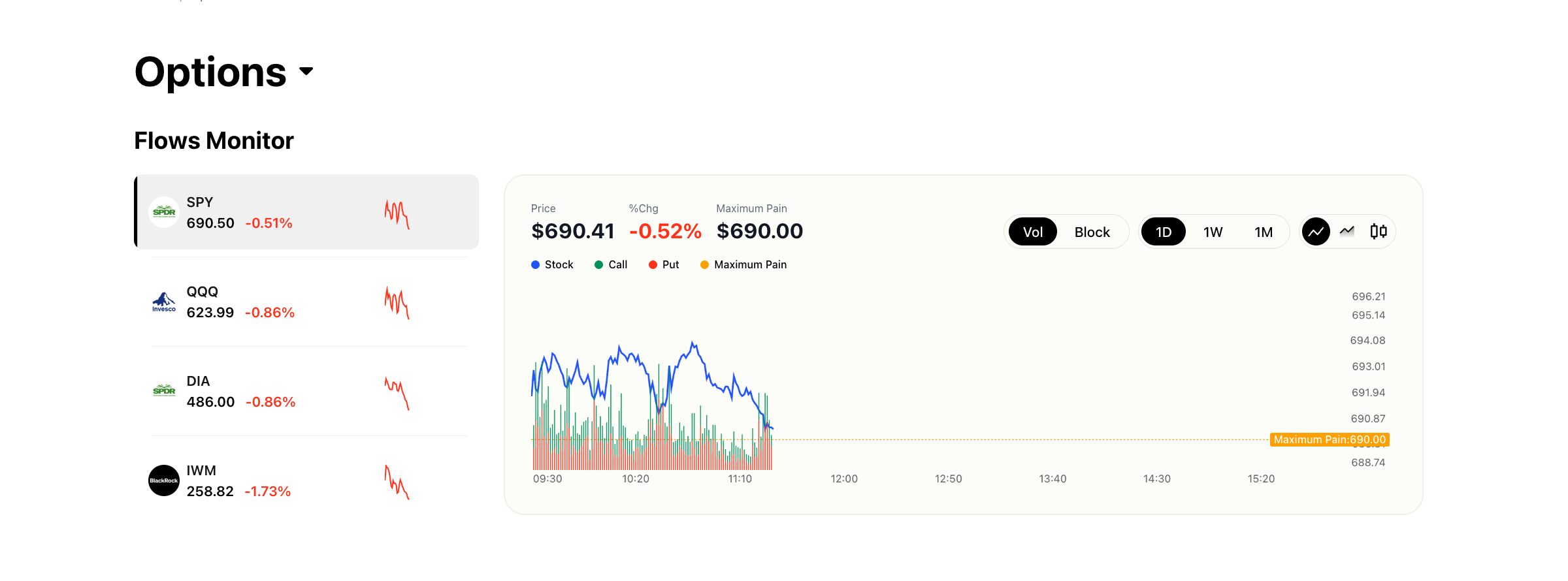
- Flows Monitor -- An intraday chart at the top of the page showing call and put volume overlaid with stock price for major index ETFs.
- Option Lab -- A curated section featuring the daily Option Flow Digest newsletter and recent option market news articles.
- 0DTE Rankings -- A table of zero-days-to-expiration options ranked by price change.
- Options Rankings -- Broader rankings by volume, open interest, and volume-to-open-interest ratio.
This page is your starting point for a market-wide view of options activity.
Option Ticker Page
URL pattern: https://www.ainvest.com/options/{TICKER}/
Example: https://www.ainvest.com/options/ARCA-SPY/
This is a per-ticker options view that brings together all the tools you need for analyzing a single underlying. It includes:
- Price chart for the underlying
- Flows Monitor sidebar showing unusual activity
- Full option chain
- Volatility tools (smile and term structure)
- Strategy Builder for constructing multi-leg positions
General Ticker Page -- Options Tab
URL pattern: https://www.ainvest.com/etfs/{TICKER}/options/
Example: https://www.ainvest.com/etfs/ARCA-SPY/options/
Every stock and ETF page on Ainvest includes an Options tab. This tab provides:
- Option Chain -- Full chain with expiration selection, bid/ask, volume, and open interest.
- Volatility -- Volatility smile and term structure charts.
- Strategy Builder -- Multi-leg strategy construction and payoff analysis.
This is useful when you are already researching a ticker and want to check its options data without leaving the page.
Block Monitor
URL: https://www.ainvest.com/block-monitor/
A dedicated full-page tool for monitoring market-wide block trades in real time. It includes advanced filtering options to narrow results by symbol, trade size, direction, and more. This page is separate from the main options landing page and is designed for traders who want to focus specifically on large institutional transactions.
Mobile App
The Ainvest mobile app organizes options tools within the Market tab. Here is how to navigate to them.
Entry Point
Open the app and tap the Market tab in the bottom navigation bar. Along the top of the Market screen, you will see a tab bar with: Stocks, ETFs, Crypto, Options, Bonds. Tap Options to enter the options section.
Options Section Layout
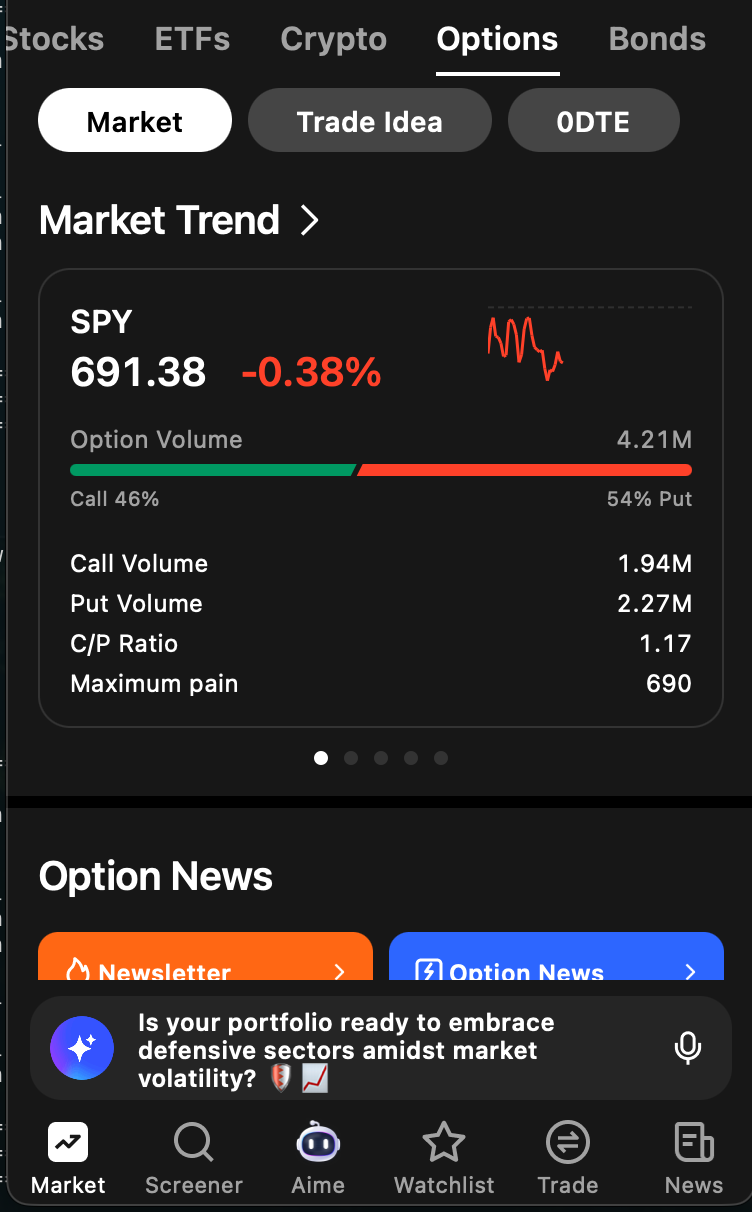
Once inside the Options section, you will find three sub-tabs at the top:
- Market -- The default view. Contains Market Trend cards, Option News, Block Flows, and Options Ranking.
- Trade Idea -- Highlights contracts with abnormal option volume.
- 0DTE -- Zero-days-to-expiration rankings in mobile format.
Scroll down within the Market sub-tab to access Block Flows and Options Ranking, which appear below the Market Trend cards and Option News entries.
Ticker Page -- Options Tab
Tap any ticker anywhere in the app to open its ticker page, then tap the Options tab. This view contains three sub-tabs:
- Chain -- Full option chain with expiration and strike selection.
- Analysis -- Volume/OI analysis, strike price distribution, volatility smile, and volatility term structure.
- Unusual Monitor -- Trading summary and a chronological feed of unusual trades.
Other Bottom Navigation Tabs
Beyond the Market tab, the bottom navigation also includes Screener, Aime (AI assistant), Watchlist, Trade, and News. While these are not options-specific, they complement the options workflow -- for example, you can add options contracts to your Watchlist or use Aime to ask questions about options data.
Try it on Ainvest: Open the Options Dashboard — navigate all options tools on web.
See Also
- Getting Started with Ainvest Options -- Overview and recommended reading order
- Feature Finder: Where to Find Every Feature -- Quick-reference table for all features
- Options Overview Page (Web) -- Detailed walkthrough of the web dashboard
- Mobile Options Section -- Detailed walkthrough of the mobile experience